> ## Documentation Index
> Fetch the complete documentation index at: https://docs.clearpolicy.app/llms.txt
> Use this file to discover all available pages before exploring further.
# Sync Planning Center lists with ClearPolicy groups
> Connect Planning Center to ClearPolicy, map Planning Center lists to groups, and manage the sync settings for each connected list.
ClearPolicy's Planning Center integration lets you sync Planning Center lists with ClearPolicy groups. When you connect a list to a group, people from that list are imported into the matching group so you can send policies and agreements without manually rebuilding your audience in ClearPolicy.
ClearPolicy is listed in the [Planning Center integrations directory](https://www.planningcenter.com/integrations/clearpolicy) as an official integration.
## What gets synced
When you set up a Planning Center sync, ClearPolicy pulls in each person's:
* **Full name**
* **Email address**
* **Group membership** based on the Planning Center list you connected
Imported people appear in your People list and are tagged with Planning Center as their source, so you can always see where they came from.
Sync is one-directional. ClearPolicy imports from Planning Center into
ClearPolicy groups. Changes you make in ClearPolicy are not synced back to
Planning Center.
## How to connect and set up sync
In ClearPolicy, navigate to **Settings** → **Integrations** → **Planning
Center**.
Click **Connect** and sign in to your Planning Center account when prompted.
ClearPolicy will request read access to your lists and the people in them.
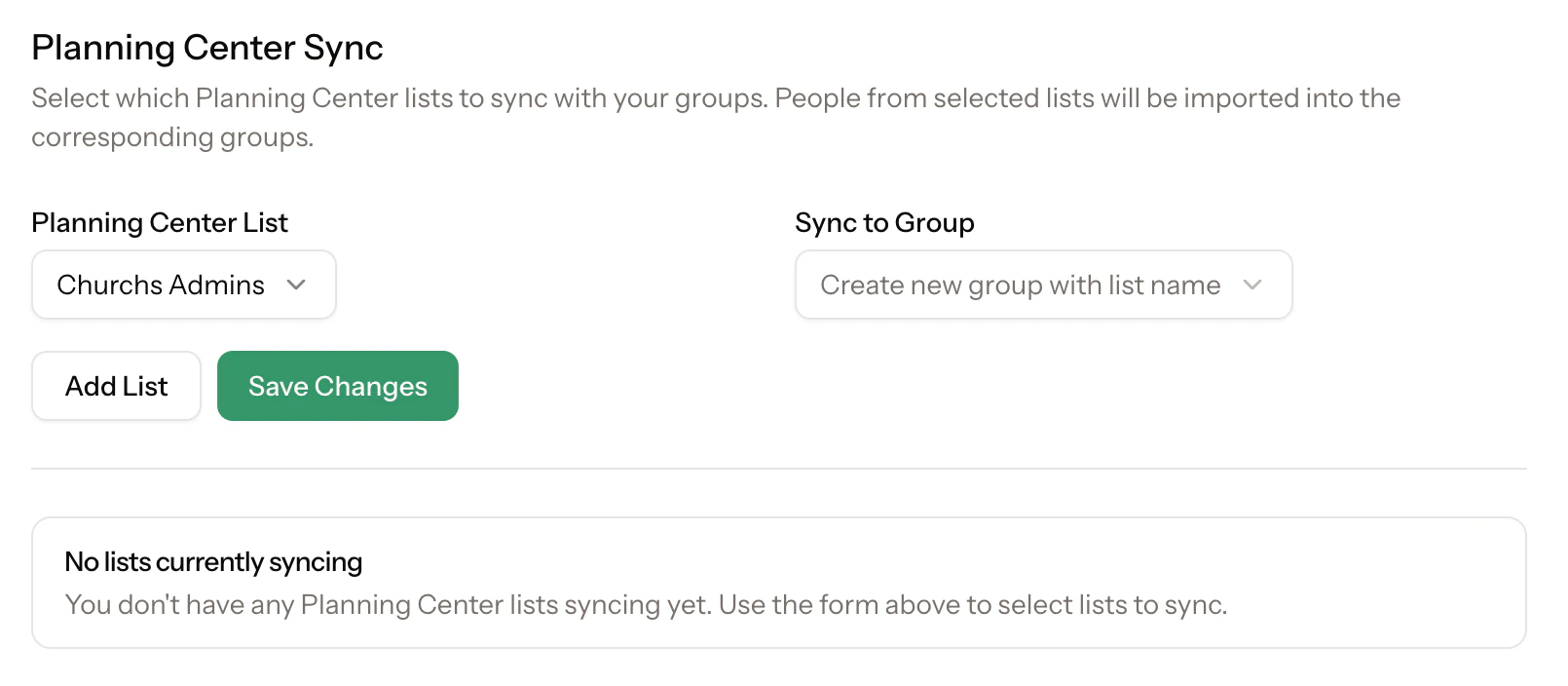
Select the Planning Center list you want to sync.
Select the group that should receive people from that list. You can create a
new group using the list name or sync into an existing group.
Click **Add List**, then click **Save Changes** to start syncing that
Planning Center list to the selected group.
Once the sync is active, you can send any published document to that group
for signature or acknowledgment.
 ## Manage existing syncs
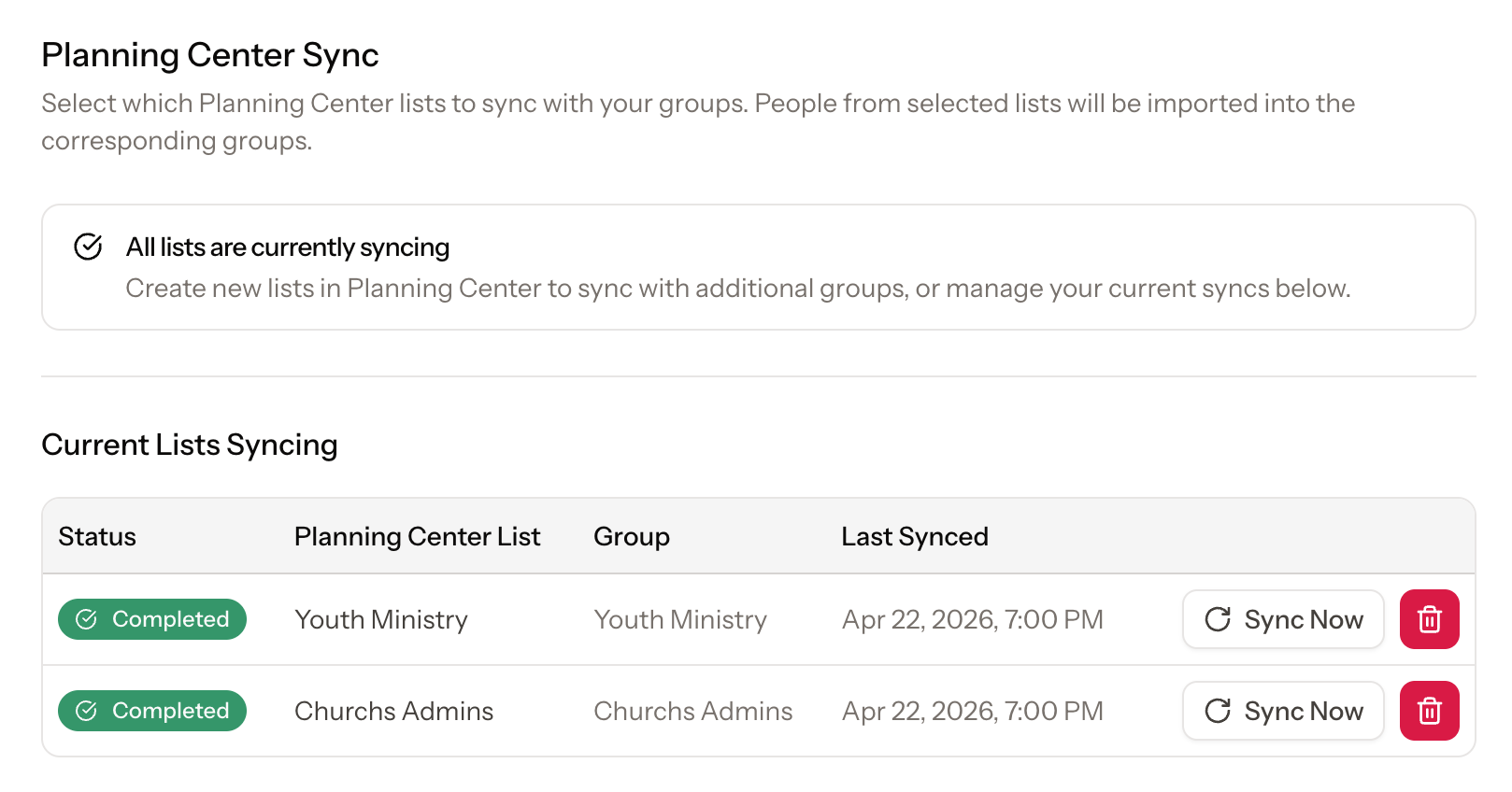
After a list has been connected to a group, the sync settings page shows each active list-to-group connection. You can review the sync status, confirm the last sync time, run **Sync Now**, or remove a sync you no longer need.
## Manage existing syncs
After a list has been connected to a group, the sync settings page shows each active list-to-group connection. You can review the sync status, confirm the last sync time, run **Sync Now**, or remove a sync you no longer need.
 Create your groups around the teams or ministries you already manage in
Planning Center. Matching names makes it easier to confirm each list is
syncing to the right group.
If a person's email address already exists in ClearPolicy, they won't be
duplicated during sync.
Create your groups around the teams or ministries you already manage in
Planning Center. Matching names makes it easier to confirm each list is
syncing to the right group.
If a person's email address already exists in ClearPolicy, they won't be
duplicated during sync.